
Create a whole document, not just a header
A business document is never one record. A sales order is a header plus line items, schedules, partners, and pricing — spread across separate entities that have to be created together or not at all. DataTether's composite tools turn that whole structure into one governed MCP tool, so an AI client creates the complete document in a single call and a failure leaves nothing behind.
- 1
Create a composite tool
Console -> Composite ToolsOpen Composite Tools and create a new one. Pick the primary entity — the document header, such as
A_SalesOrder. This is the record everything else hangs off, and the one whose key the ERP generates when the document is created.What you'll see A new composite tool with its primary entity selected.
This is where the product screen for this step will appear.
- 2
Add the related sources
Composite Tools -> Add sourceEach related entity becomes a source with its own alias: line items, schedule lines, partners, pricing conditions. Add as many levels as your document needs — a source can hang off the header or off another source, so three and four levels deep are perfectly normal.
A typical sales order4 sources - header — the order itself (primary).
- items — line items, attached to the header.
- pricing — condition records, attached to each item.
- partners — sold-to and ship-to, attached to the header.
- 3
Tell each source what it belongs to
Source -> Attach toFor every non-primary source, choose the parent source it attaches to, then set the join condition that links them — typically the parent's key field mapped to the child's matching field. This is what makes pricing rows sit inside their own line item rather than floating beside the order, and it is the only structural thing you have to get right.
You never type the parent's key values. DataTether reads your service metadata, propagates the generated document number down the tree at write time, and fills those fields in for you.
The document tree 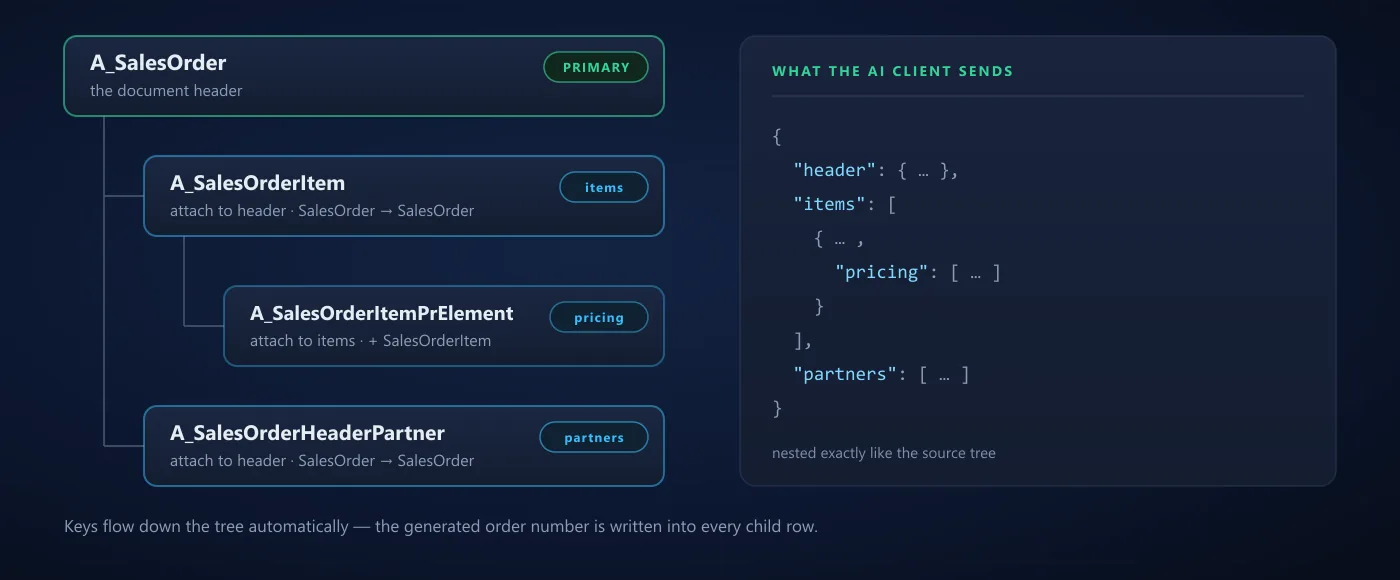
What you'll seeHierarchy derived The sources resolve into a document tree:
- Each source shows the parent it nests under.
- Propagated key fields are marked as filled automatically.
- A source that cannot be placed is flagged before you save.
- 4
Choose how writes are processed
Tool detail -> Write ProcessingTwo modes, switchable per tool at any time:
Atomic sends the document as one transaction. If your ERP rejects any part of it — a material that does not exist, a blocked customer — the entire change is rolled back and nothing is written. No half-created orders, no orphaned headers to find and delete later.
Sequential writes record by record with per-row progress. Useful when you want to see exactly how far a large document got, and the automatic fallback when a service does not support transactional writes.
What you'll seeAtomic selected - The mode applies to create, update, and delete for that tool.
- Works on OData V2 and V4 — the platform picks the right mechanism per service.
- Services without transactional support fall back to sequential and say so in the result.
- 5
Enable the operations you want
Tool detail -> OperationsTurn on Create, Update, or Delete. Each enabled operation becomes its own MCP tool with a schema that mirrors your document tree, so an AI client sees nested arrays instead of a flat field list. Keep Write Safety on and every call pauses for human confirmation before anything reaches your ERP — see Security and governance.
What the AI client sendsNested input { "header": { "SalesOrderType": "OR", "SoldToParty": "17100001" }, "items": [ { "Material": "MZ-FG-C980", "RequestedQuantity": "10", "pricing": [ { "ConditionType": "PR00", "ConditionRateValue": "450.00" } ] } ], "partners": [ { "PartnerFunction": "WE", "Customer": "17100002" } ] } - 6
Read the result, source by source
Confirmation -> Execution resultEvery run reports back per source, not as one opaque blob. On success each entity shows the keys your ERP assigned — the new order number, each line item number. On failure the error is attributed to the entity that caused it, in your ERP's own words, so you know precisely which row to fix.
What you'll seeCreated A successful atomic create:
- A_SalesOrder — SalesOrder=48618
- A_SalesOrderItem — SalesOrder=48618, SalesOrderItem=10
And when a line item is rejected, the failing entity carries the message, the rest are marked as not written, and the result confirms the document was rolled back in full.